Selling products on Amazon India provides you with direct access to millions of active buyers. Whether you utilize the Easy Ship model or handle logistics yourself, managing the daily order dispatch effectively is vital for maintaining a strong seller rating. One of the most critical parts of this daily workflow is printing your shipping labels.
Amazon label formats can be surprisingly difficult to handle if you are trying to optimize your paper usage or transition to a high-speed thermal printer setup. By default, the Amazon system generates labels in a format that rarely fits a specialized hardware setup perfectly. This detailed guide explains exactly how to crop and arrange your Amazon shipping labels for both 4x6 thermal printers and economical 4-in-1 A4 layouts.
Amazon Easy Ship label format vs FBA
When you fulfill orders from your own warehouse using Amazon Easy Ship, the platform provides a specific shipping label that the designated pickup associate will scan at your door. This standard label contains the buyer details, a very large primary barcode, and essential routing information. The default download format is usually oriented towards standard A4 page printing.
If you use Fulfillment by Amazon, Amazon handles the actual packing and shipping to the end customer. However, you are still required to print item labels to send your bulk inventory into the Amazon warehouse network. The formatting process for those barcode labels is different from regular daily order shipping labels.
For standard daily Easy Ship seller fulfilled orders, the main technical challenge is taking the raw PDF provided by Amazon and making it fit your specific printing hardware, especially when you are dealing with high daily order volumes.
How Amazon labels differ from Meesho
If you sell your products on multiple eCommerce platforms, you will quickly notice that Amazon shipping labels differ significantly from Meesho labels. A major operational difference is that Amazon Easy Ship labels often generate without the tax invoice combined on the exact same page by default, depending on how you configure your seller central settings.
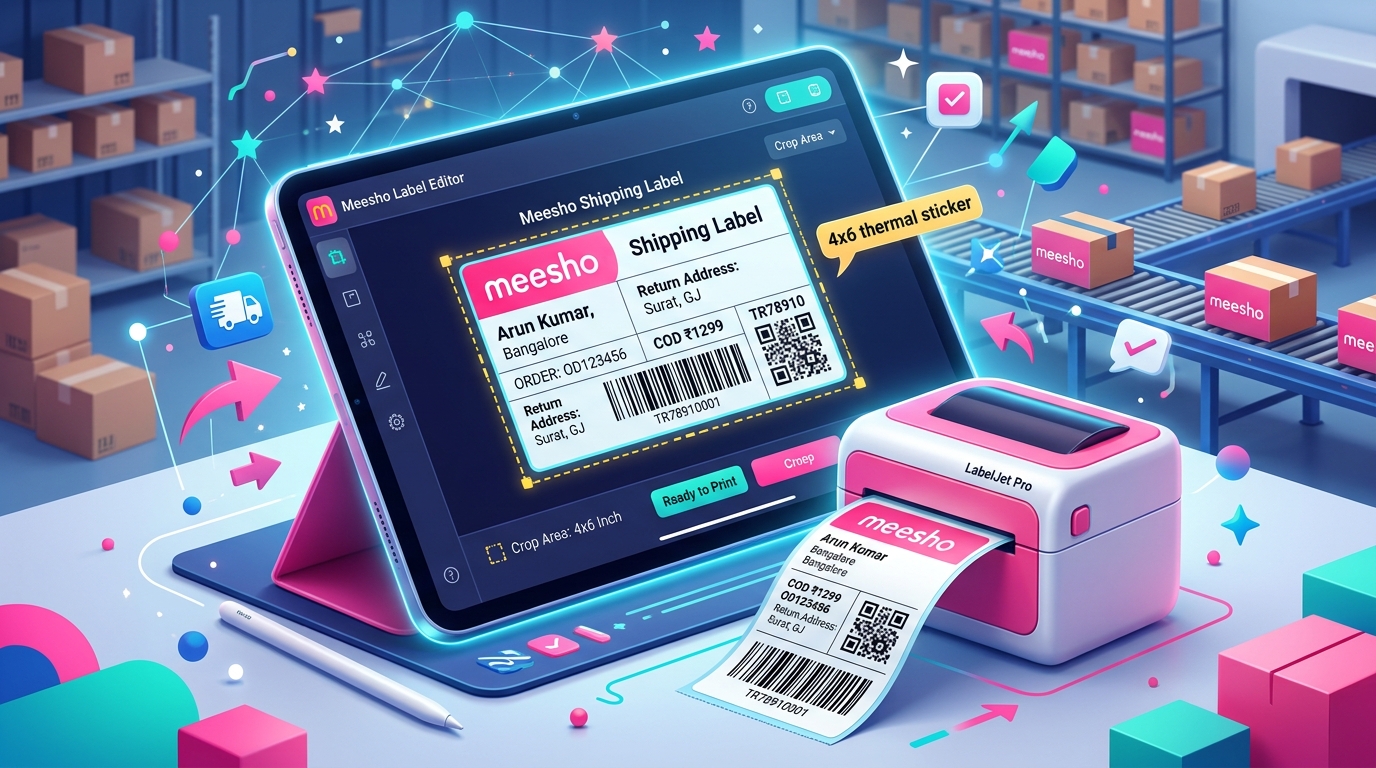
Meesho almost always lumps the primary shipping label and the tax invoice together on one single A4 page. With Amazon, you frequently get just the shipping label, but it is awkwardly placed in the center or the top left corner of a large A4 page. Even without the invoice attached at the bottom, sending this raw file directly to a 4x6 thermal printer will result in massive blank margins and a tiny, completely unreadable label.
This formatting quirk is exactly why cropping is still a necessity for Amazon PDFs. You must trim away the empty white space on the digital A4 page so the actual printed label data fills the 4x6 sticker perfectly from edge to edge.
Using TheLabelCutter to crop and arrange Amazon labels
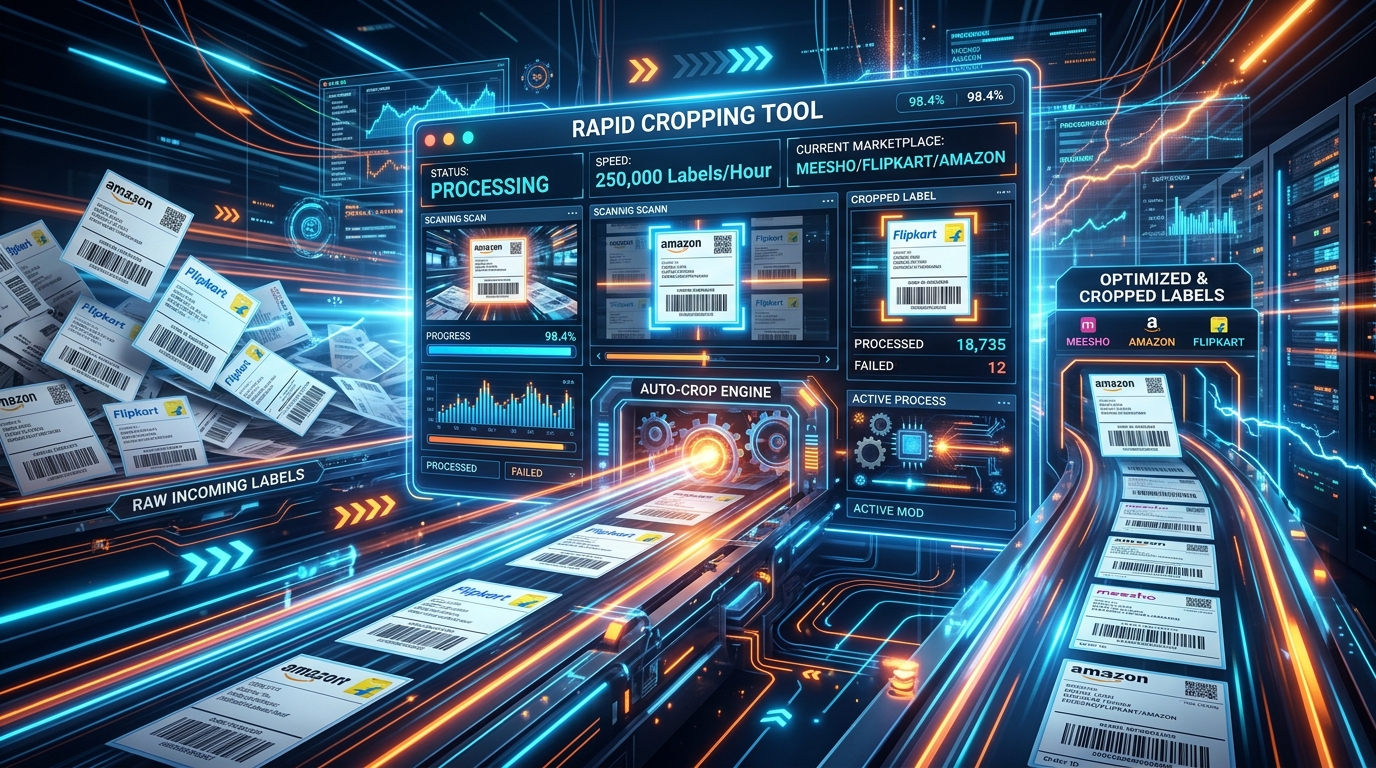
Doing this manual cropping for dozens of daily orders is frustrating and slow. You can use TheLabelCutter to completely automate the tedious formatting of your Amazon labels.
First, log in to your Amazon Seller Central account, navigate to the manage active orders page, and select the pending orders ready for dispatch. Download the shipping labels as a combined bulk PDF file.
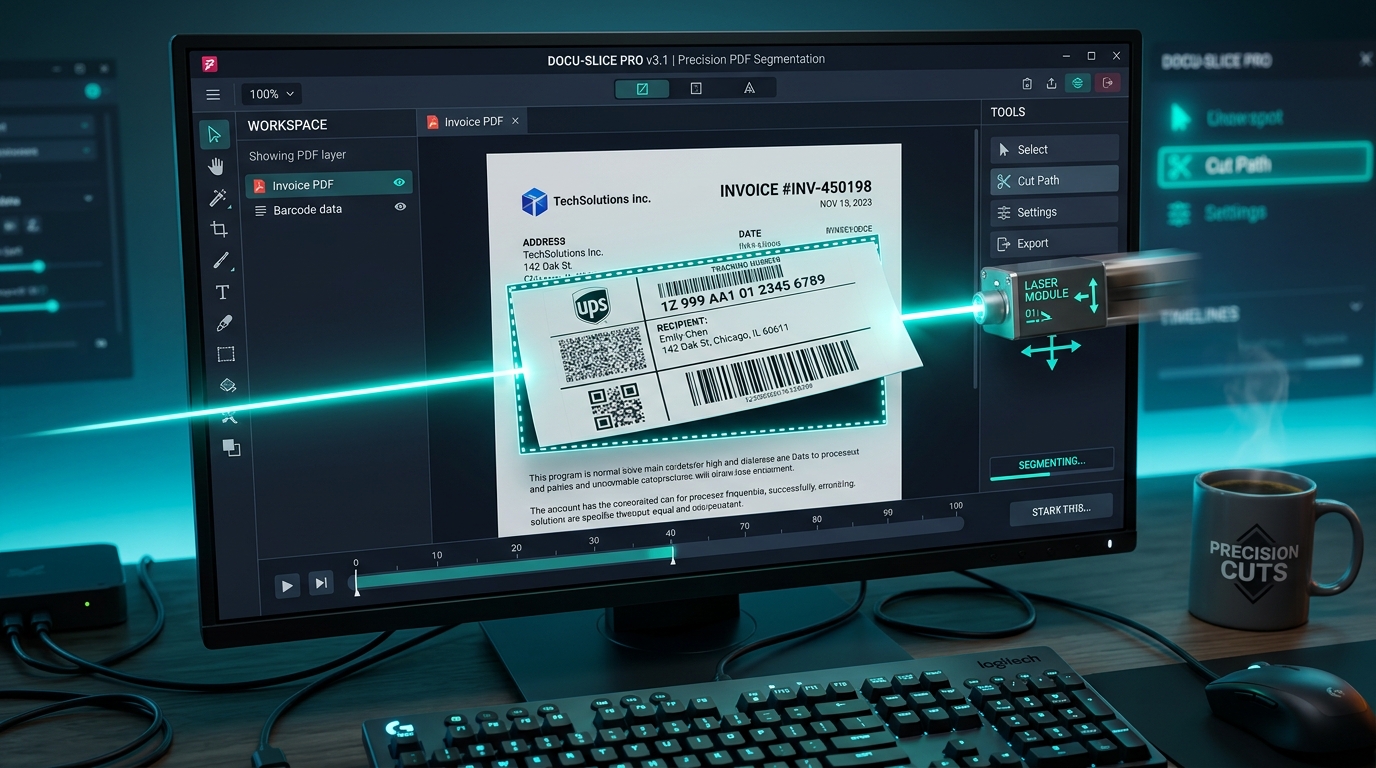
Open TheLabelCutter and upload the raw Amazon PDF. The system will read the document and automatically identify the label boundaries. It cuts away the unnecessary white space and extracts just the active label data.
From there, you can choose your desired output format based on your hardware: either single 4x6 labels for a thermal printer, or multiple labels arranged tightly on a single A4 sheet.
4x6 thermal setup for Amazon
If you have upgraded to a thermal printer, select the 4x6 output option in TheLabelCutter interface. The tool will instantly generate a new PDF where every single page is exactly 4 inches by 6 inches, containing one perfectly scaled Amazon shipping label.
When you open this newly generated PDF, you must ensure your local printer settings are configured correctly. Select your thermal printer from the system list, set the paper size to exactly 4x6, and set the document scale to fit to printable area. This critical step ensures the label prints edge-to-edge, making the barcode large and extremely easy for the Amazon pickup team to scan quickly.
Using a thermal printer for your Amazon orders speeds up your daily packing line tremendously. You completely avoid the high cost of liquid ink and the annoying manual hassle of taping paper labels to your corrugated boxes.
4-in-1 A4 layout for Amazon
Not every seller is ready to invest capital into a dedicated thermal printer right away. If you are still relying on a standard laser or inkjet printer, printing one single Amazon label per A4 sheet is a massive waste of paper resources.
TheLabelCutter solves this specific problem by offering a 4-in-1 layout option. When you upload your raw Amazon PDF and select the A4 layout mode, the tool will automatically crop the labels and arrange four of them perfectly onto a single standard A4 page.
Instead of printing 100 separate pages for 100 orders, you only print 25 pages. You then simply cut the sheet into four even quarters. This method cuts your direct paper costs by 75 percent instantly.
Amazon dispatch SLA and label requirements
Amazon is notoriously strict about dispatch timing and performance metrics. Your late dispatch rate must stay consistently below 2 percent, or you risk permanent account suspension. Having a fast label printing workflow helps you stay well within the Easy Ship Service Level Agreement.
Furthermore, Amazon strictly requires the barcode to be clearly scannable by their handheld devices. If you resize the label incorrectly manually and the barcode becomes blurry or too small, the pickup associate will simply reject the package at your door. Using a proper cropping tool ensures the original aspect ratio is maintained and the print resolution stays high.
Frequently asked questions
Can I print Amazon item labels using this tool?
TheLabelCutter is primarily designed and optimized for seller fulfilled shipping labels. For inventory item labels, Amazon Seller Central already provides built-in formatting options to print on standard grid sticker sheets like 21-up or 24-up formats.
Will the 4-in-1 layout shrink the Amazon label too much?
No, exactly four labels fit perfectly on a standard A4 sheet without compromising the readability of the address text or the critical scannability of the barcode.
What if my Amazon PDF has the invoice included?
If your specific Amazon settings generate a combined shipping label and tax invoice, TheLabelCutter will automatically detect this layout and crop out the invoice section, giving you just the shipping label.
Why is the barcode not scanning after I print it?
Check your local printer settings. Ensure you are not scaling the print too small in the print dialog, and check that your thermal printer head is clean and free of dust. TheLabelCutter outputs a high-resolution file, so local hardware settings are usually the root cause of any scanning issues.