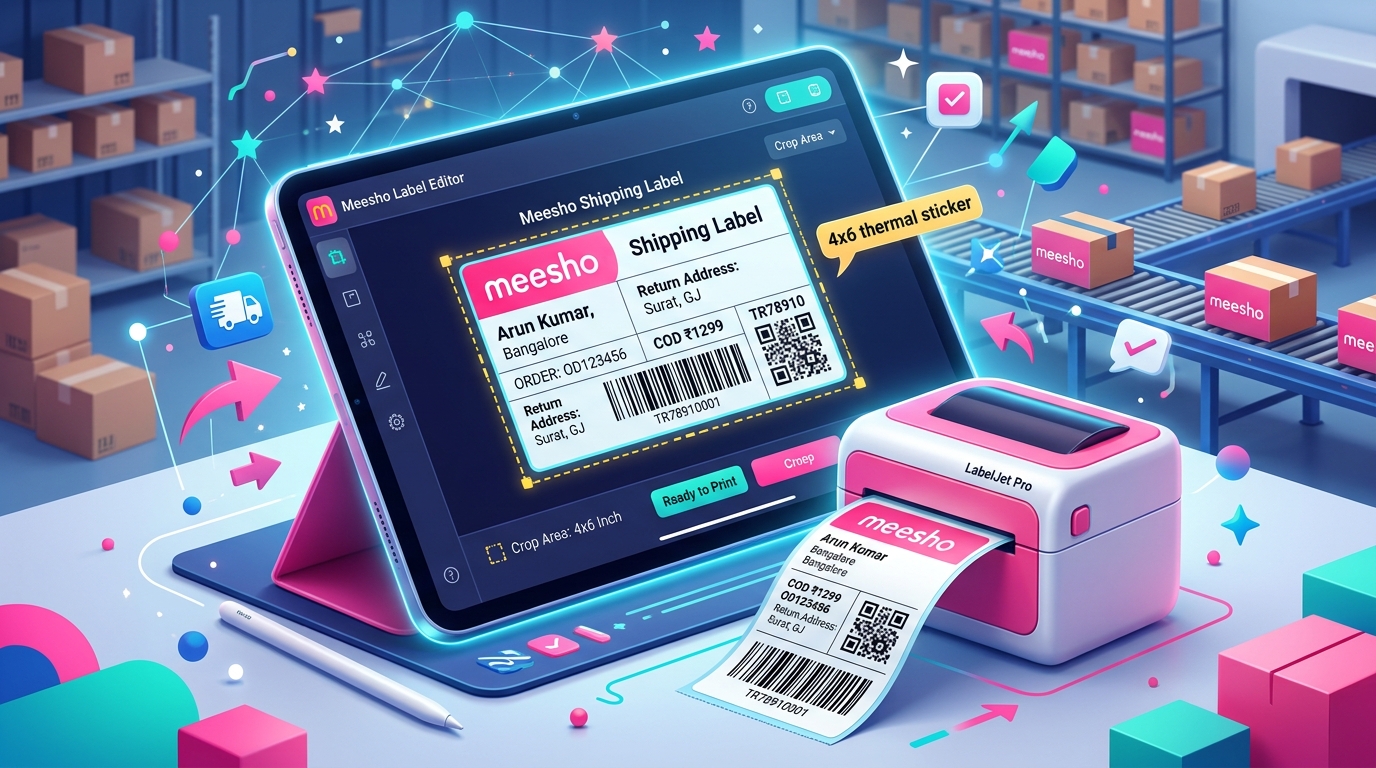
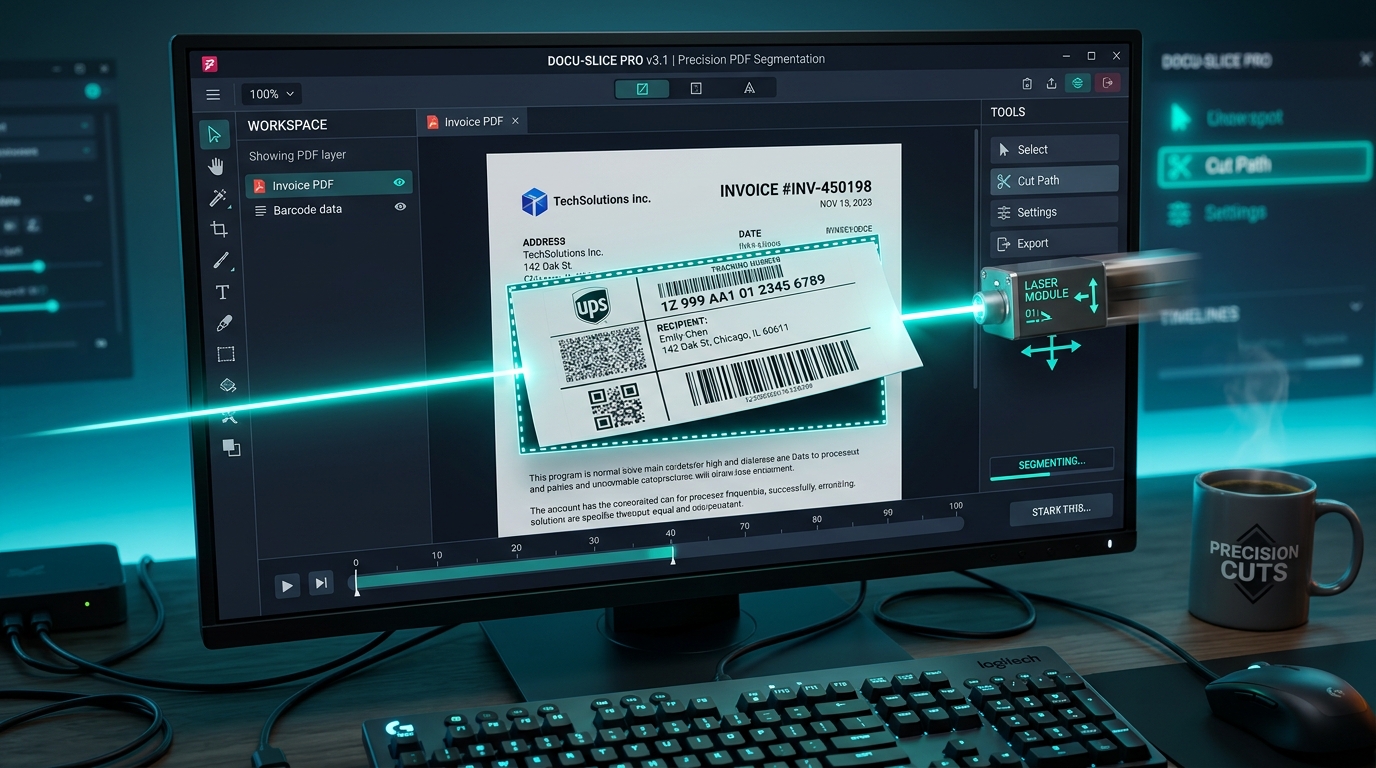
Processing morning orders quickly is one of the most important habits for an eCommerce seller. When you sell products on Meesho, customer orders come in batches, and your supplier panel allows you to download daily shipping invoices as PDF files. However, these documents combine a shipping label on the top section and a tax invoice on the bottom section. Printing the entire sheet on regular paper and cutting labels manually with scissors wastes hours every single day. Using a dedicated quick label crop tool online lets you extract clean, print-ready barcodes in seconds, speeding up packing tables and reducing courier handover stress.
Why fast label cropping matters for online sellers
Fulfillment speed directly affects your marketplace performance metrics. When courier pickup vans arrive at your doorstep, having parcels packed, labeled, and sorted by logistics partner ensures zero handover delays. A smooth quick label crop workflow offers several operational advantages:
- Time savings: Cropping a batch of 80 to 100 shipping labels manually inside desktop software takes approximately 45 minutes. A specialized browser tool crops the entire PDF batch in less than three seconds.
- Thermal paper savings: Printing cropped labels on standard 4x6 inch thermal paper rolls avoids wasting expensive A4 sticker sheets or regular printer ink cartridges.
- Clear barcode readability: Automated vector cropping preserves exact barcode resolution (203 DPI or 300 DPI), preventing blurred lines that cause scanner rejection at courier sorting hubs.
- Reduced packing errors: When shipping labels are cleanly extracted and grouped by product SKU, your team picks and packs the correct inventory with fewer mistakes.
Step by step: how to use our quick label crop tool online
Cropping Meesho shipping labels on TheLabelCutter requires no account registration, software installation, or payment. Here is the complete step-by-step workflow:
Step 1: Download your invoice PDF from the Meesho supplier panel
Log in to your Meesho Supplier Panel and navigate to the Orders section. Select all orders ready for dispatch and click on the Download Invoices button. Meesho generates a single consolidated PDF file containing all selected customer orders.
Step 2: Upload the PDF file to TheLabelCutter
Open the Invoice Label Crop Tool on TheLabelCutter. Drag and drop your downloaded Meesho PDF into the upload area, or click the upload box to browse files on your computer or smartphone. The tool immediately begins client-side parsing.
Step 3: Choose your preferred output format
Depending on your printer hardware, select your required layout:
- Thermal 4x6 inch format: Perfect for TSC, Xprinter, Zebra, TVS, and Gprinter roll printers. Each page contains one cropped shipping barcode label formatted to standard 100x150 mm dimensions.
- A4 format (4 labels per sheet): Ideal for regular laser or inkjet printers using standard A4 paper or 4-in-1 sticker sheets.
Step 4: Select sorting and invoice preferences
Our tool provides intelligent options to customize your output:
- Courier-wise sorting: Automatically groups labels by delivery partner (Valmo, Delhivery, Shadowfax, XpressBees, Ekart) so you can hand over parcels in organized batches.
- SKU-wise sorting: Arranges labels alphabetically by product SKU, enabling fast batch picking from your warehouse shelves.
- Separate multi-quantity orders: Filters single-unit orders (Qty = 1) from multi-unit orders (Qty ≥ 2), preventing packaging errors where warehouse staff might pack only one item.
- Keep or remove invoice pages: Choose whether to include tax invoice pages as separate sheets or omit them entirely to save paper.
Step 5: Download your print-ready PDF
Click the Download Sorted PDF button. Your processed PDF downloads instantly to your device, ready to open and print.
Browser-based processing vs cloud upload tools
When selecting a quick label crop utility, data privacy is a vital consideration. Many online conversion websites upload your documents to third-party cloud servers where files may be stored indefinitely. Shipping labels contain sensitive customer information, including full names, home addresses, phone numbers, and order cash-on-delivery values.
TheLabelCutter operates completely inside your web browser. Utilizing modern WebAssembly technology, all PDF manipulation, barcode detection, and coordinate slicing happens locally on your own computer or mobile phone. Your documents are never uploaded to our servers, ensuring total privacy for your customer records and business sales figures.
Setting up your thermal printer for crisp barcode printing
To ensure courier delivery agents can scan your labels quickly with handheld scanners, your printer settings must match the cropped PDF specifications. Follow these configuration guidelines in Windows or macOS:
1. Paper size setting
Open your printer properties in Windows Control Panel. Under paper stock settings, create or select a custom paper size of 4x6 inches (100mm x 150mm). Setting the wrong page size causes cutoff edges or shrunken labels with illegible text.
2. Print scaling and margins
When opening the print dialog in Google Chrome, Adobe Acrobat, or your browser, always set Scale to 100% (Actual Size). Do not select "Fit to Page" or "Shrink to Fit", as scaling can distort barcode line widths and reduce scanner accuracy. Set margins to None.
3. Print darkness and speed
For thermal roll printers such as the TSC DA220 or Xprinter XP-420B, set the print speed to 3 or 4 inches per second (ips) and print darkness (density) to 8 to 10. Printing too fast or with low heat results in faded vertical barcode lines that fail scanner verification at delivery hubs.
Comparing label cropping methods for Indian sellers
To understand why a dedicated quick label crop tool is superior, consider how different cropping approaches compare in daily warehouse operations:
| Method | Speed (100 Orders) | Cost | Sorting Capabilities | Privacy Level |
|---|---|---|---|---|
| Manual Scissors / Cutting | 60 - 90 mins | High (Paper & Ink Waste) | None (Manual Effort) | Local |
| Adobe Acrobat Manual Crop | 40 - 50 mins | Paid Software | None | Local |
| Server-Upload Web Tools | 2 - 5 mins | Free / Paid Tiers | Basic | Low (Files Uploaded) |
| TheLabelCutter Online Tool | Under 5 seconds | 100% Free Forever | Courier & SKU Sorting | Highest (100% In-Browser) |
Frequently asked questions about quick label cropping
Does this tool work with Amazon and Flipkart shipping labels?
Yes. In addition to Meesho invoice PDFs, our tool suite supports Amazon Easy Ship labels, Flipkart Smart and Express shipping labels, and general marketplace PDF files.
Is there any daily limit on the number of labels I can crop?
No. You can crop unlimited batches of orders every day. Whether you process 10 labels or 1,000 labels in a single PDF, the tool handles the entire document smoothly.
Can I crop labels on my mobile phone?
Yes. TheLabelCutter is fully responsive and functions smoothly on Android smartphones and iPhones. You can download invoice PDFs directly from your mobile browser, process them in our tool, and send the output to a Bluetooth thermal printer.
Why do my cropped barcodes sometimes print with faint white lines?
Faint horizontal or vertical lines across a barcode usually indicate dust or adhesive residue on your thermal printer head. Clean the print head gently using an isopropyl alcohol wipe while the printer is turned off.
How does SKU sorting help during morning dispatch?
When labels are arranged by SKU, your warehouse staff can pick all units of a single product at once. Packing 30 units of the same item consecutively takes less than half the time of packing mixed items individually.